
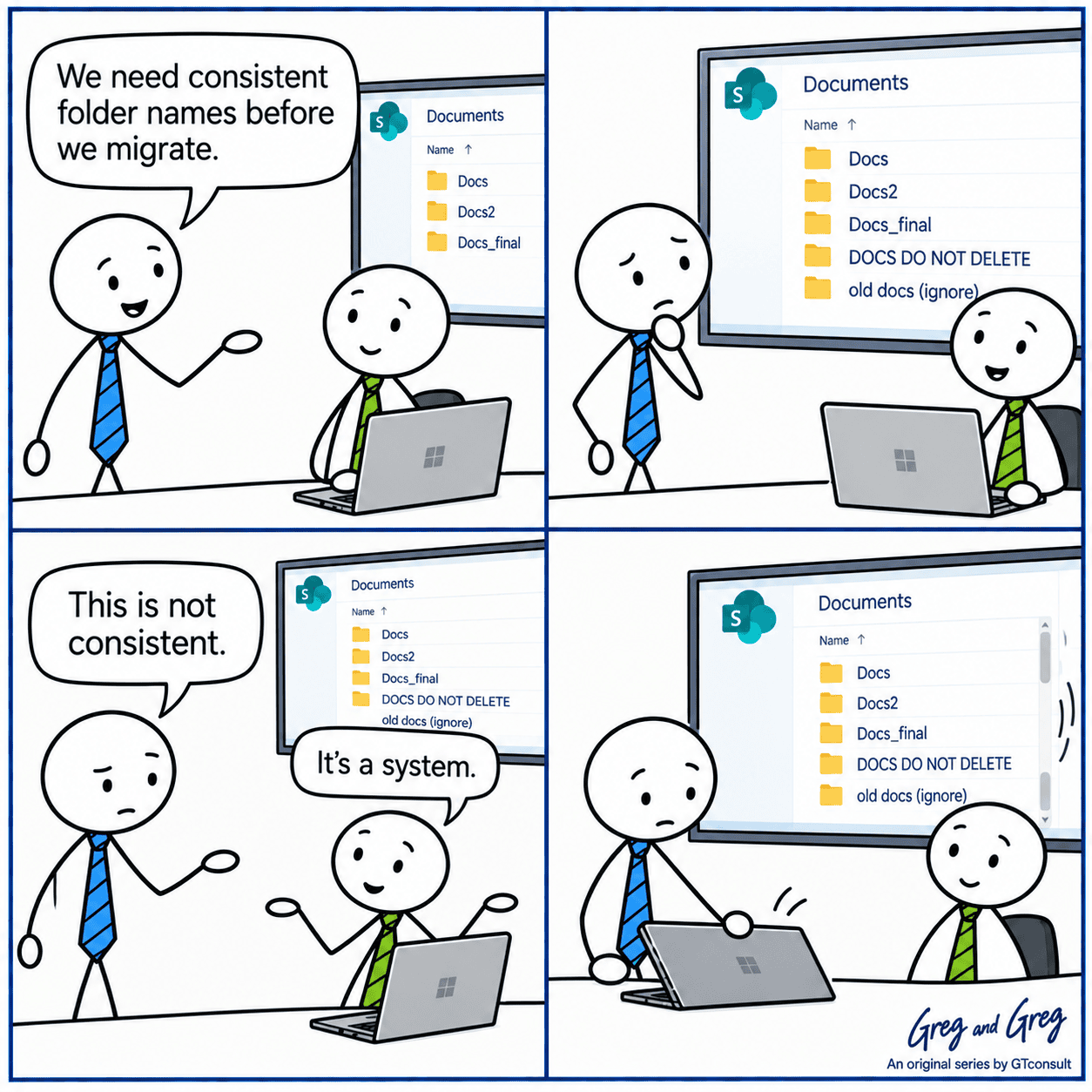
Every organisation has a folder called Docs2, and another one helpfully marked DOCS DO NOT DELETE. Migration is the moment that folder structure finally has to answer for itself, because someone now has to map it onto something new and defend that choice.
The temptation is to move everything across as it is and tidy up later. It is the most common mistake in file share migrations and one of the most expensive.
Why messy structure becomes a migration problem
Duplicates multiply the review work
Every near-identical folder becomes a decision about which one is real.
Inconsistent names make mapping unreliable
Automated mapping to a new site and library structure works best when the source follows some kind of pattern.
Hidden permissions get missed
As GTconsult's File Shares vs SharePoint comparison points out, file share permissions become unmanageable over time, and exceptions buried in oddly named folders are easy to overlook until something breaks after go-live.
Deep nesting hits platform limits
More on that below.
Dead content gets carried across
It is stored, indexed and searched like everything else, which clutters results for years.
None of this is really about tidiness. A messy structure usually means permissions and ownership have drifted just as far as the folder names have, and migration is what exposes both at once.
The path length trap
SharePoint Online and OneDrive won't accept a file when the entire decoded path, including the file name, is longer than 400 characters. That path covers the site, the library and every folder level, so deeply nested structures use up the budget quickly. Syncing adds another constraint, because the synced copy is also subject to Windows or macOS path limits.
Certain characters aren't allowed in file and folder names either. Anything that breaks these rules has to be renamed or moved before it can migrate, so find those files early rather than discovering them in the migration error log halfway through.
Don't rebuild the file share inside SharePoint

Folders are good for a few broad levels. Attributes such as client, year, status and document type work better as metadata columns, because they can be filtered, sorted and searched in ways folders can't.
For example, a file that lives at Finance / Clients / ABC Ltd / 2023 / Contracts / Signed / Final_v2.docx could instead live in a single Client Contracts library, with columns for Client, Year and Status, and a plain name like ABC Ltd Service Agreement.docx. Nothing is lost, and the file is much easier to find.
A sensible rule of thumb is to keep folders to a few levels at most, and to split content into separate libraries or sites where permissions or ownership genuinely differ.
Naming conventions that survive
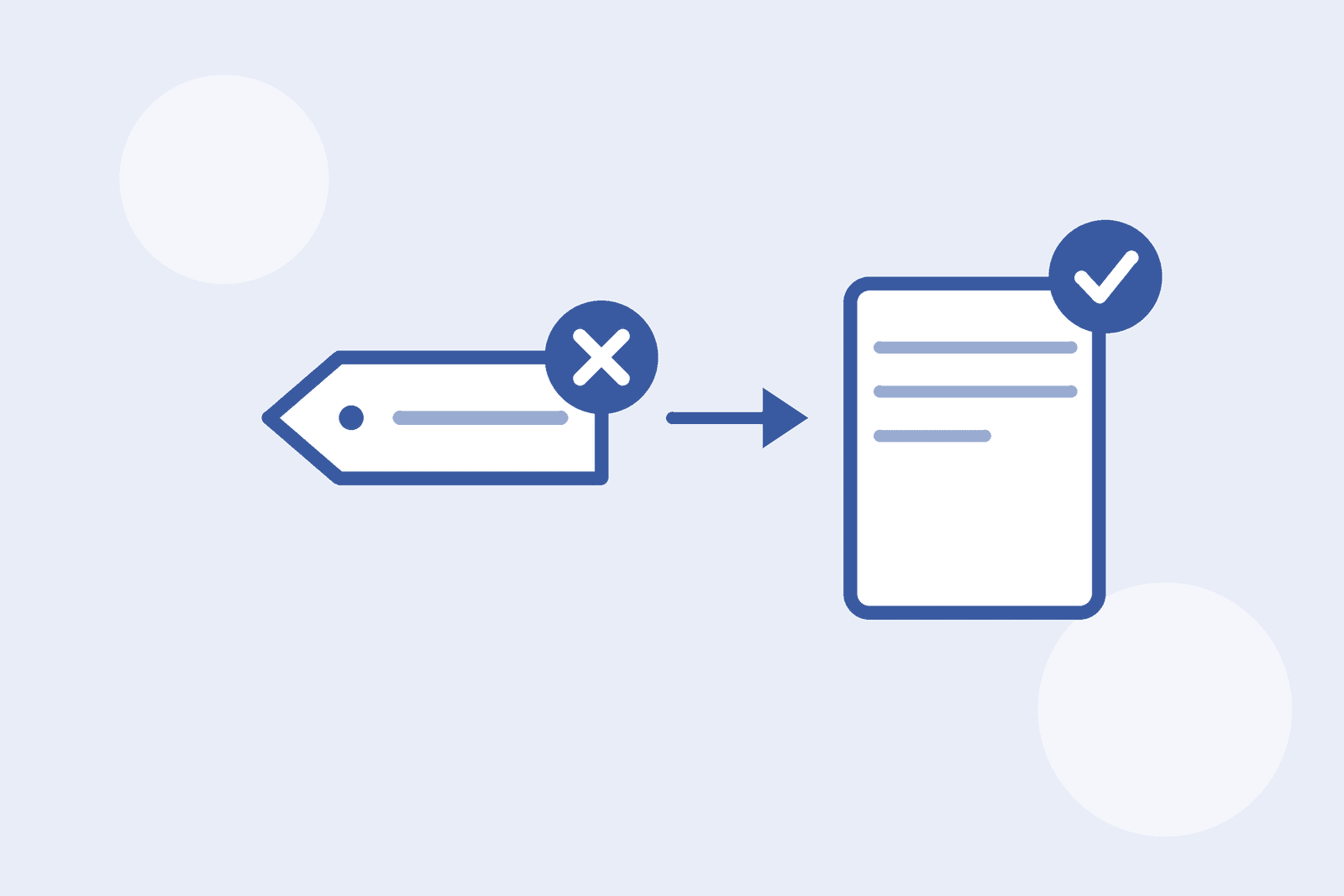
Keep names short, descriptive and consistent.
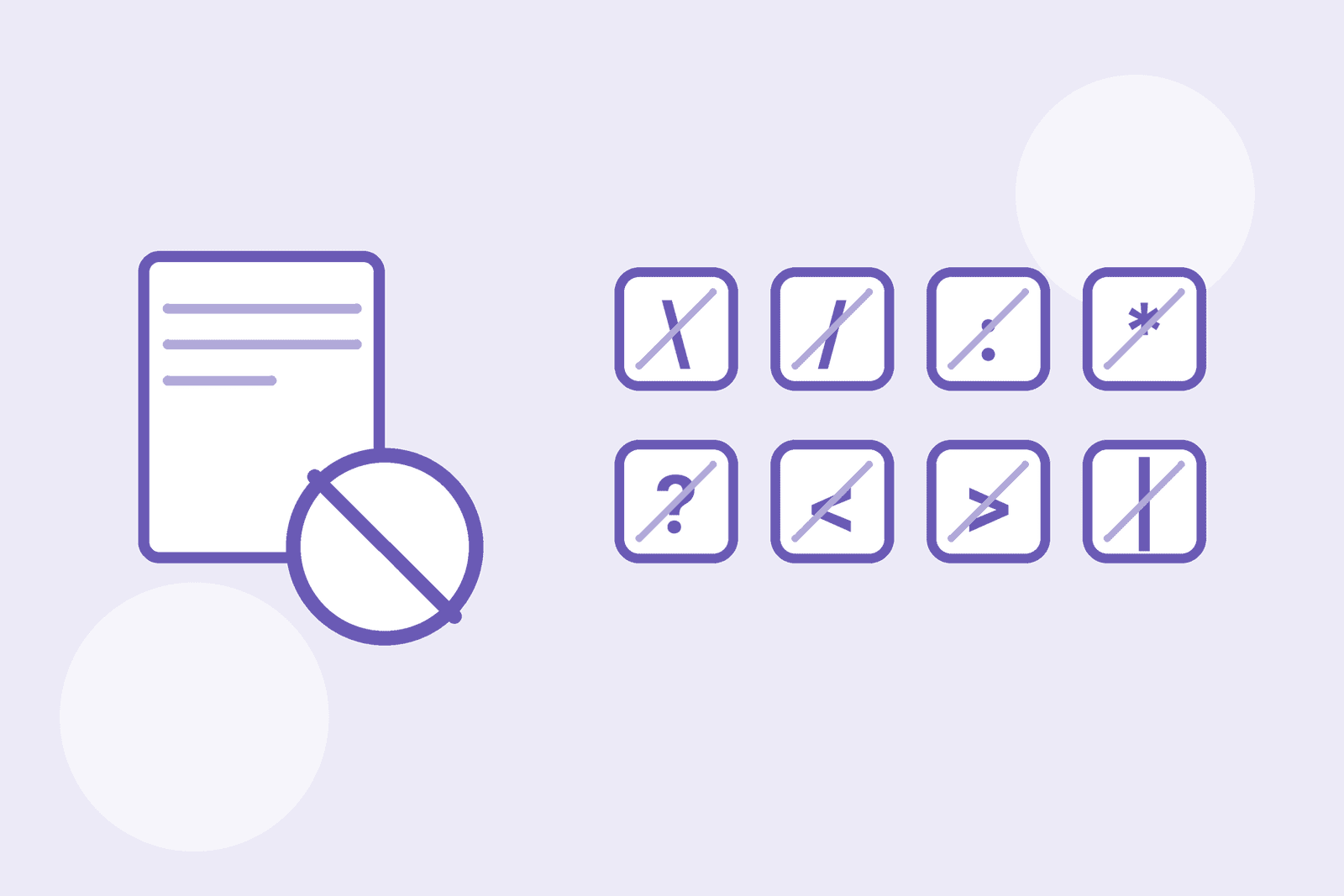
Avoid special characters that SharePoint or Windows reject.
Keep versions out of file names. SharePoint tracks versions for you.
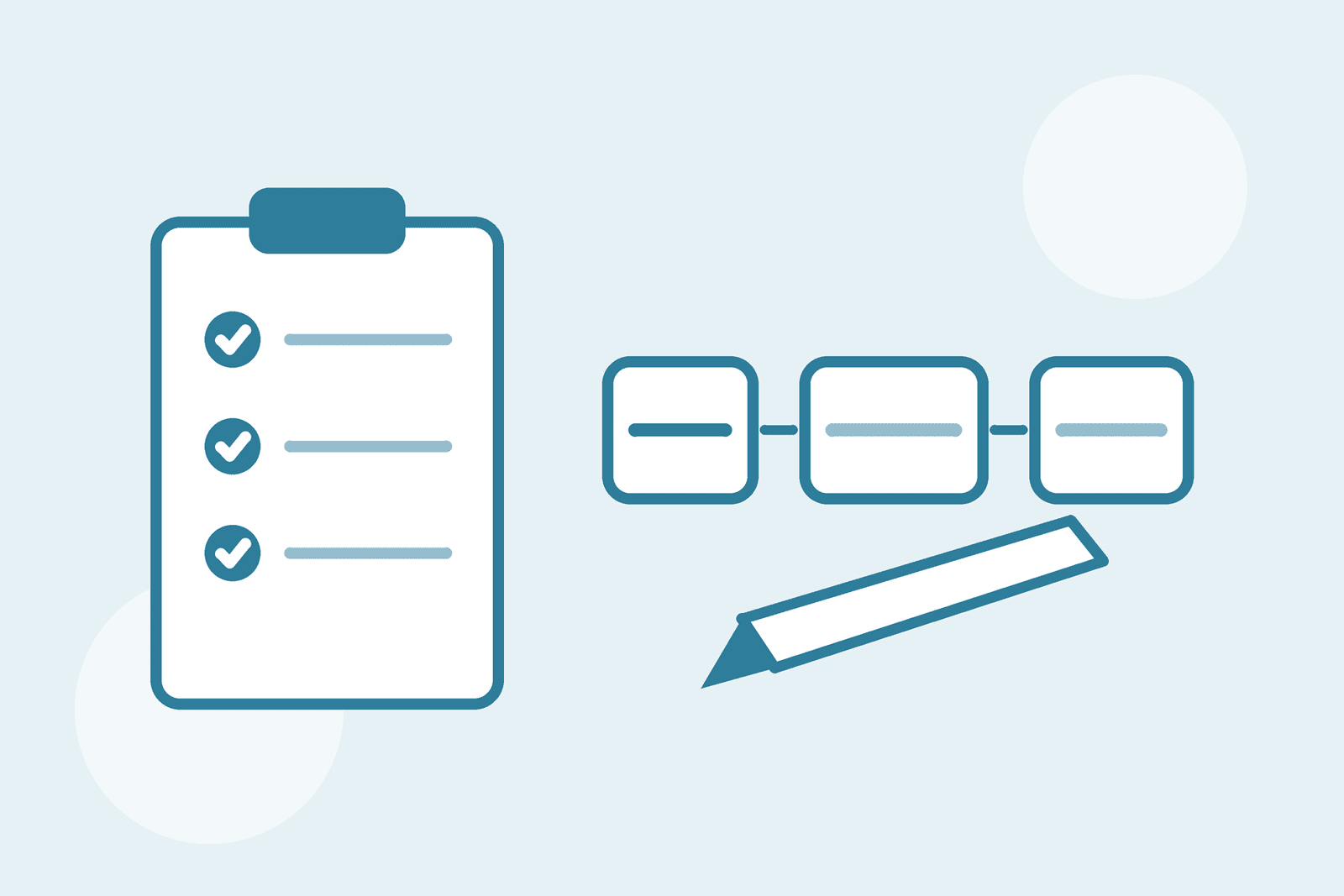
Pick a pattern and write it down, for example Client, then Document type, then Description.

Agree it with the people who will use it. GTconsult's SharePoint Migration Checklist includes establishing naming conventions in its governance steps.
A cleanup sequence that works
- Inventory. Record size, age, last modified date, owner and permissions for each top-level folder.
- Identify ROT. Redundant, obsolete or trivial content: duplicates, temporary files and anything nobody has opened in years.
- Agree what goes where. Map each top-level area to a site, a library or an archive.
- Decide the rules. Naming convention, metadata columns and maximum folder depth.
- Clean up at the source. Rename, merge and delete before the migration, not during it, so the migration is a move rather than a redesign.
- Pilot one area. Check that the new structure works for the people who use it every day.
- Migrate in waves. Start with the cleanest areas and apply what you learn to the messier ones.
Who decides what to keep?
Content owners do. IT can produce the list, but IT can't tell you which of 40 similar folders is still in use. Give owners a short list and a deadline, and agree up front what happens to folders nobody claims. For example: move them to a read-only archive for a set period, then delete. That removes the biggest source of delay in cleanup, which is waiting for answers that never arrive.
Questions you might have
Should I clean up files before or during migration?
Before. Cleaning up during migration slows the project and mixes two kinds of change on the same content, which increases the risk of errors.
Does folder structure matter if we're using metadata in SharePoint?
Yes. Even with strong metadata, a chaotic source structure makes mapping harder and riskier, because someone still has to decide what goes where.
What is the file path limit in SharePoint Online?
Microsoft's limit is 400 characters for the entire decoded file path, including the file name, in SharePoint and OneDrive. Syncing is also subject to your operating system's path limits.
How deep should folders go in SharePoint?
As shallow as you can manage. Use a few broad levels for navigation and metadata for everything else.
How far in advance should cleanup start?
As part of the initial audit, well before any cutover date is set, so cleanup doesn't end up competing with the technical migration for the same time.
Still deciding whether to move off file shares at all? Read GTconsult's File Shares vs SharePoint comparison for an honest look at when each one makes sense and what to plan before you migrate.
Related reading: SharePoint Migration Checklist and SharePoint migration services.