
Giving everyone access makes migration easier but leaves a security gap. Here is how to audit access and sharing before you move to SharePoint.
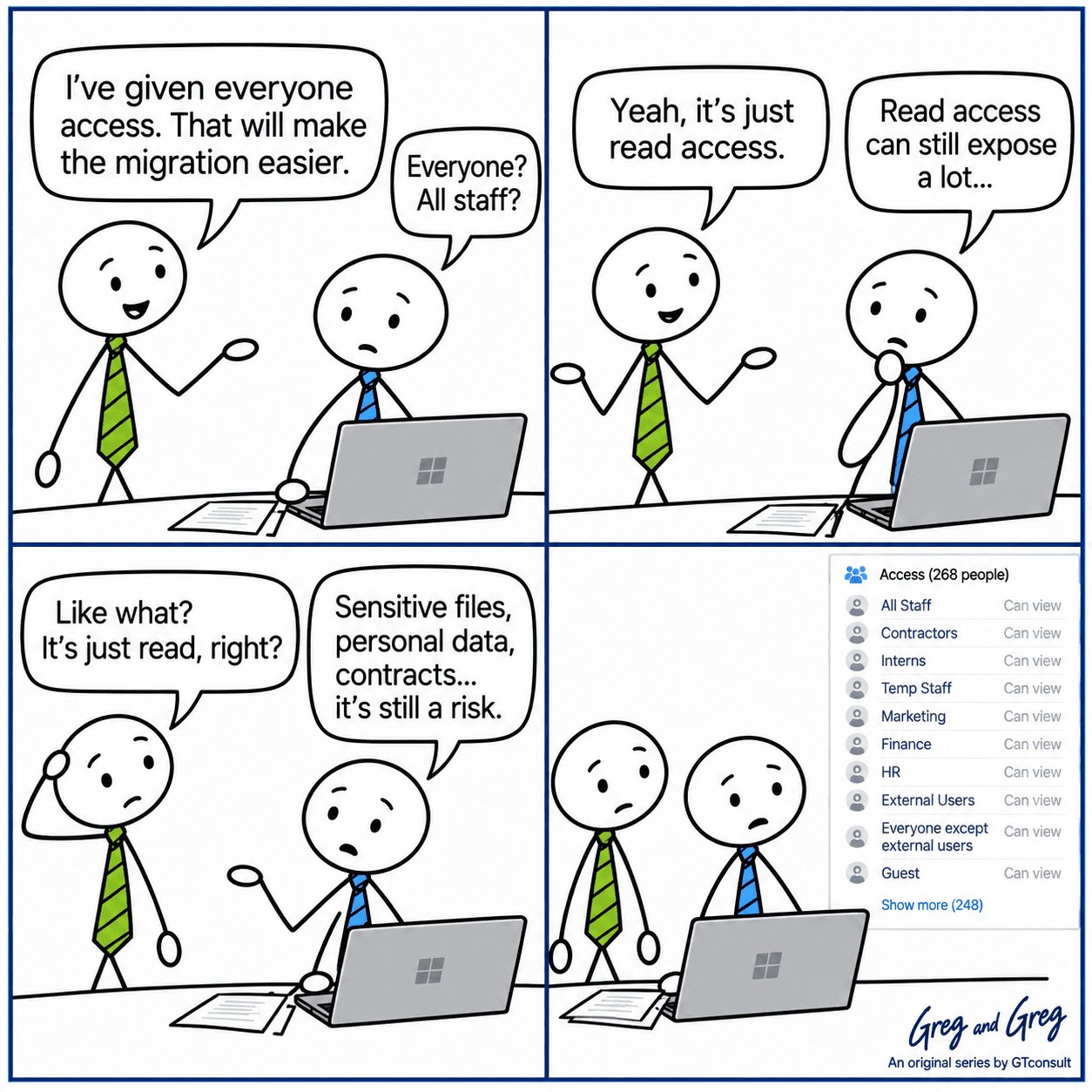
"I've given everyone access, it'll make the migration easier." In the moment, that sounds practical. Fewer access errors, fewer tickets, faster testing. The catch is that broad access doesn't tidy itself up afterwards. It becomes the permanent state, and the new environment inherits it.
Why broad access is so tempting
Under time pressure, the quickest way to stop "access denied" messages is to widen access: read for all staff, or all staff plus contractors, with the detail to be sorted out later. Later rarely arrives. Everyone can see everything, and nobody notices until someone opens a folder they shouldn't have been able to find.
"It's just read access" is not a safety net
Read access is enough to expose payroll files, performance reviews, contracts, client data and pricing. When the people with read access include contractors, interns, temp staff and guests, the number of people who can see sensitive content can be far bigger than anyone realises. In the comic, one library ends up visible to 268 people.
There are legal reasons to care as well. Regulations such as POPIA in South Africa and GDPR in the UK and Europe expect organisations to protect personal information with appropriate safeguards. A library of HR or client records that everyone can read is hard to defend in an audit.
AI raises the stakes. Microsoft 365 Copilot works within each person's existing permissions, so anything shared too widely becomes much easier to surface with a simple question. Oversharing was always a risk. Search and AI make it findable in seconds.
What to audit before you migrate

- Broad built-in groups, especially "Everyone except external users" and all-staff groups.
- Guest and external users, and which sites they can reach.
- Sharing links, particularly "Anyone" links and links to partners who no longer work with you.
- Folders and items with unique permissions.
- Sites with no owner, or an owner who has left.
- Where your sensitive content actually sits: HR, finance, legal and client data.
GTconsult's SharePoint Migration Checklist puts documenting current security settings and permissions, and listing all external sharing settings, into the pre-migration steps for exactly this reason.
Tools that help you find it
Microsoft's SharePoint Advanced Management (SAM) includes data access governance reports that identify sites with overshared content, including the top items and groups shared with "Everyone except external users" over the last 28 days. Site access reviews then let you hand the review to the owners of the overshared sites, so the people who know the content decide who should keep access. Microsoft's documentation says organisations without a Copilot licence can buy a standalone SAM licence, so check what you already have.
Alongside that, review your external sharing settings in the SharePoint admin center and check which guests exist in your directory. GTconsult has also published a post on best practices for SharePoint permissions.
Fix it before it moves
After the move: keep it that way
Schedule a regular access review, quarterly for sensitive sites, and let site owners confirm who should be there. Turn on alerts for unusual sharing. Treat the first review after migration as the baseline you compare everything else against.
Questions you might have
Does broad access carry over automatically during migration?
Often yes, unless you review and reset it first. That is why outdated or overly broad access tends to persist into the new environment unchanged.
How do I audit sharing in SharePoint?
Use the reports in the SharePoint admin center and Microsoft 365 compliance tools. SAM's data access governance reports are designed for this. Run them before migration, not after.
Should all broad access be removed before migrating?
No. Legitimate access should stay, but every grant should be reviewed and deliberately kept or removed, not carried over by default because it was easier at the time.
Why does Copilot make oversharing more urgent?
Copilot works within each person's existing permissions, so content that is shared too widely is far easier to find and summarise.
Who should own the access audit?
IT runs the reports, but site and content owners make the decisions, and compliance should sign off on the sensitive areas.
Curious what your own access picture looks like? GTconsult's free Copilot Readiness Assessment reviews access controls and sharing settings across your Microsoft 365 environment and comes back with a report and recommendations.
Related reading: The Ultimate Guide to Office 365 Security and best practices for SharePoint permissions.