
Legacy Workflow Migration: SharePoint 2010/2013 Workflows Explained
Old SharePoint workflows, like SharePoint 2010 and 2013 workflows, don't migrate on their own. Here is how to find them, decide what to keep and rebuild them in Power Automate.
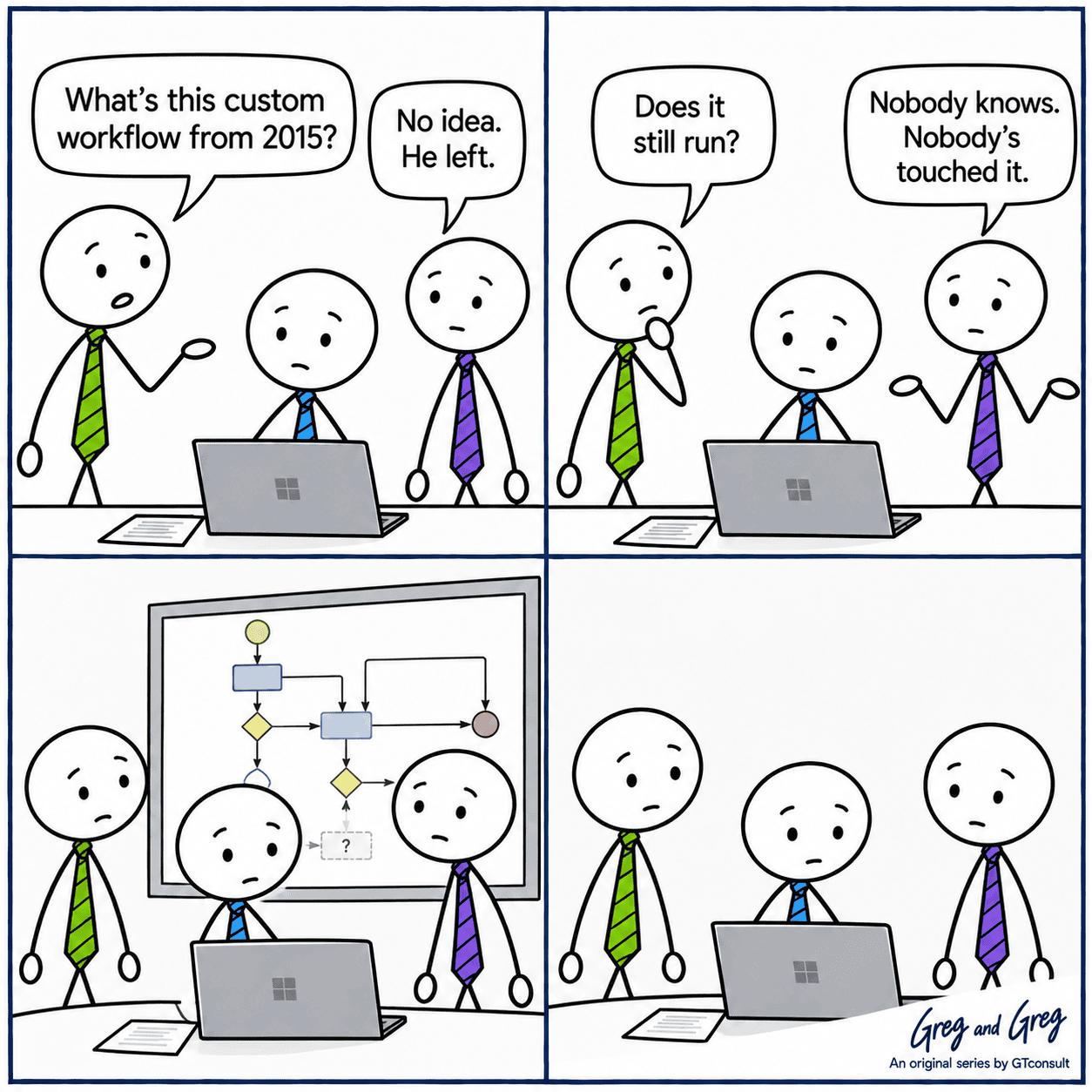
Every migration eventually finds that one workflow. It was built years ago by someone who has since left, nobody has touched it since, and everyone quietly relies on it. Migration is usually the first time anyone looks at it properly, because until now it has been running in the background, unnoticed and unquestioned.
The awkward part is that these workflows don't come across with the content. They need to be found, understood and either rebuilt or retired, and that has to happen before cutover rather than after something stops working.
What has changed?
A few dates from Microsoft are worth knowing:
Why these workflows catch people out
They run quietly, attached to a library or list, and nobody sees them unless something goes wrong. Approval chains in finance and HR are the classic examples. The first sign of trouble is usually a business process stalling, such as an approval that never arrives or a notification that stops, days after go-live. By then it is hard to connect the problem back to the migration.

Step 1: Find every workflow
Don't rely on a single source. Combine a few approaches:
- Scan the tenant. Microsoft recommends its Microsoft 365 Assessment tool for finding SharePoint 2013 workflow usage. It also gives a Power Automate upgradability score for the detected actions.
- Inventory customisations. GTconsult's SharePoint migration PowerShell scripts can list custom solutions in an environment.
- Check the sites themselves. Open sites in SharePoint Designer and look at list and library workflow settings.
- Ask the business. Who relies on automatic approvals, reminders or document routing? The people who use a workflow often know it better than IT does.

Step 2: Decide what each one is worth
For every workflow, answer five questions: Is it still running? When did it last run? Who depends on what it produces? What happens if it disappears? Could a built-in feature, such as alerts, content approval or a standard approval flow, do the job now?
Then sort each one into retire, replace with something simpler, or rebuild. Many turn out to be dormant, and retiring a workflow nobody uses is the cheapest outcome you will get.

Step 3: Convert or rebuild
There are two routes:
- Convert. SharePoint Migration Tool 4.1 can assess and migrate supported SharePoint Designer workflow actions to Power Automate, generating one or two flows per workflow depending on its start options. Converted flows can behave differently from the original, because the two platforms don't match feature for feature. Treat the output as a starting point and test it.
- Rebuild. Design the process again in Power Automate. It takes longer, but it lets you fix the process while you're at it rather than reproducing every quirk.
Watch for platform gaps. Microsoft has acknowledged differences between SharePoint Designer workflows and Power Automate flows, including a 30 day limit on how long a flow can run. An approval that sat waiting for weeks in the old workflow may need redesigning.
Also think about who owns the new flow. Flows run using the identity of the connection owner by default, so build them under a proper shared or service owner rather than the personal account of someone who might leave.

Step 4: Test like a user
Write down each trigger and its expected result, then run it with real scenarios: submit an approval, reject one, reassign it, let one time out. Check that notifications arrive, that the right people can see the item at each stage, and that permissions behave as they should. Ask the process owner to sign it off. A flow that runs without errors can still be doing the wrong thing.

Step 5: Document what you built
Keep a simple register with the owner, purpose, trigger, dependencies and the date it was last tested. That way the next migration, or the next platform change, doesn't face the same mystery.
Questions you might have
Do SharePoint 2010 and 2013 workflows migrate to SharePoint Online automatically?
No. Those workflow platforms are retired in SharePoint Online, so each workflow needs to be converted or rebuilt, typically in Power Automate.
Can the SharePoint Migration Tool migrate workflows?
Version 4.1 can assess and migrate supported SharePoint Designer workflow actions to Power Automate. The result still needs testing, as converted flows can behave differently from the originals.
What if we are staying on SharePoint Server Subscription Edition?
According to Microsoft, Subscription Edition supported SharePoint 2010 based workflows until 14 July 2026 and continues to support 2013 based workflows beyond that date.
What is the best replacement for old SharePoint workflows?
Power Automate is Microsoft's recommended platform, and most common approval and notification scenarios can be rebuilt there. Some complex or long running processes may suit a third party tool better.
How do I avoid missing a workflow?
Combine tool scans with conversations with process owners, then monitor closely for the first few weeks after go-live in case anything still slips through.
Not sure what's hiding in your environment? GTconsult's migration assessment checklist, would be a good place to start.
Is Hybrid SharePoint Still Worth It?
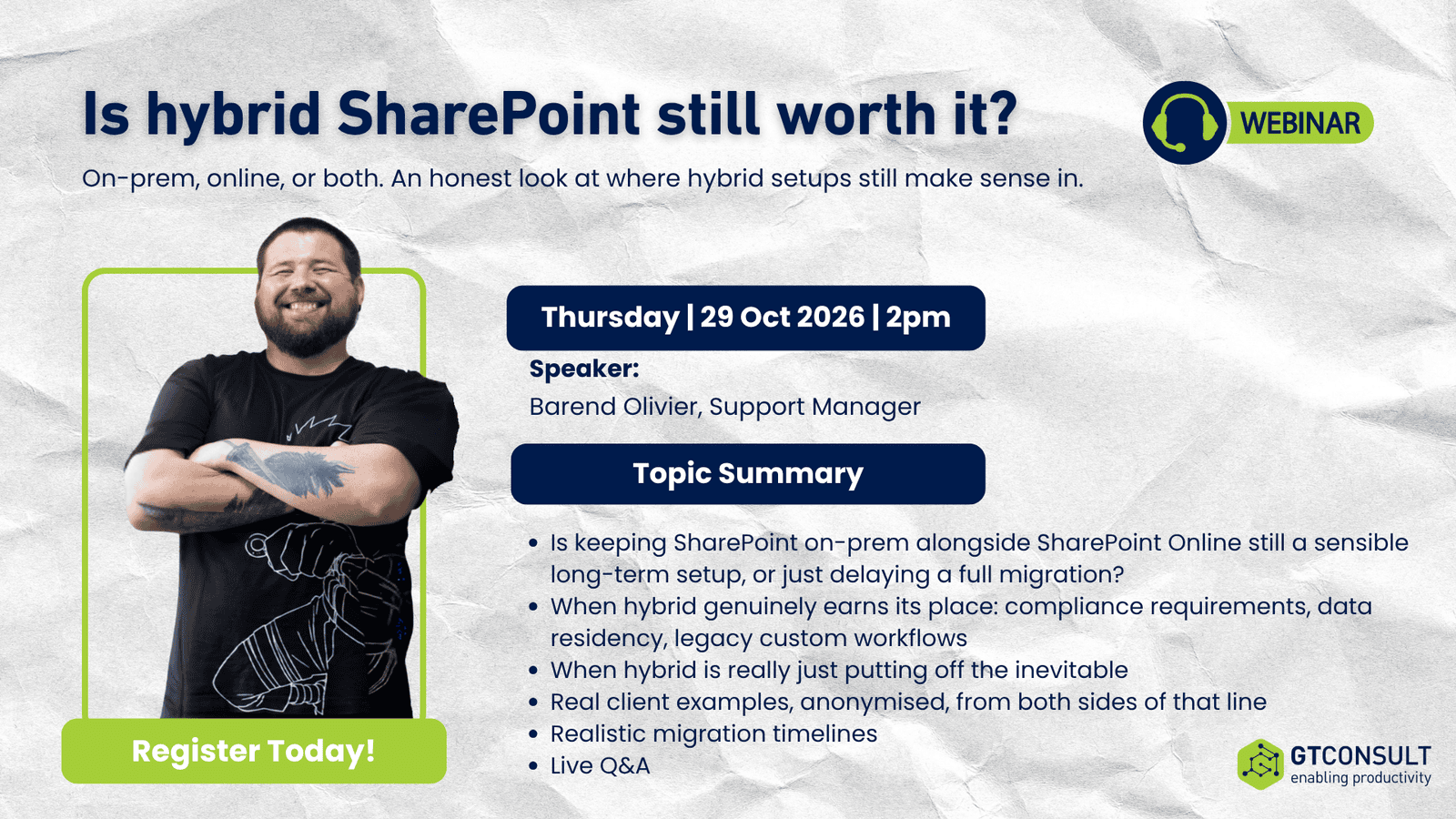
With SharePoint Server 2016 and 2019 now past end of support, many organisations are asking whether a hybrid setup is a sensible long-term home or just a slower route to a full migration.
Barend Olivier, Delivery Manager at GTconsult, shares his view from the support desk: when hybrid genuinely earns its place, when it’s putting off the inevitable, and what that looks like in real client environments.
What you’ll learn:
- When hybrid makes sense long term (compliance, data residency, legacy custom workflows)
- When hybrid is really just delaying a full migration
- Real client examples from both sides, anonymised
- How to decide what’s right for your environment
- Who should attend: IT managers, SharePoint administrators, and anyone still running on-prem SharePoint.