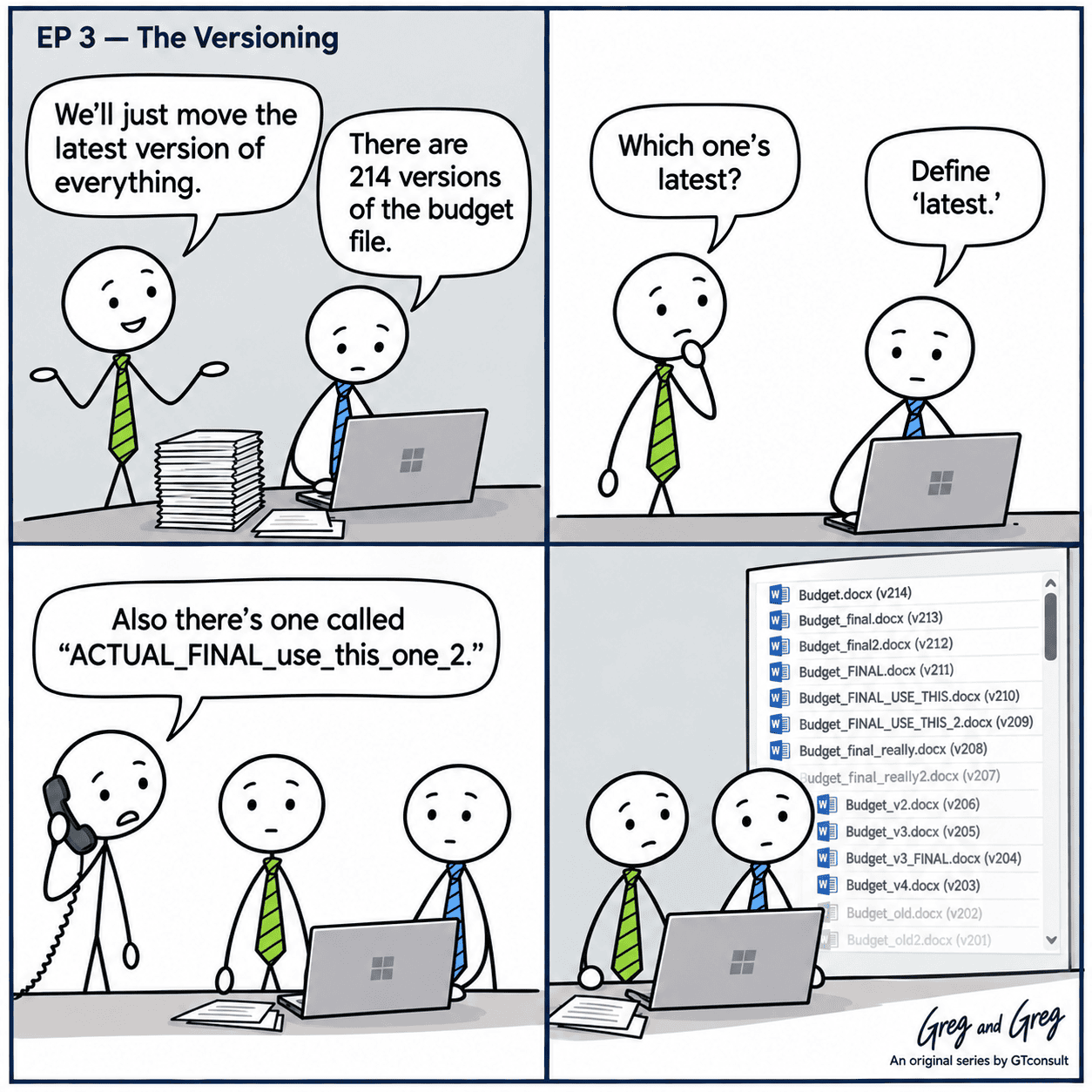
Every organisation has that one file, 214 versions deep, nobody sure which one is actually final. Daily use lets that ambiguity sit quietly in the background. Migration forces the question out into the open, because someone now has to decide what's worth carrying forward and what's just noise.
What migration tools actually carry over
Most migration tools move version history by default, but not unlimited history. SharePoint Online enforces version limits per library, and very deep version chains can hit those limits or slow the migration significantly. Some tools offer options to cap how many versions transfer, trading history for speed, and that trade off is worth understanding before a migration starts rather than discovering it mid-run.
It also matters what a version means in the destination. A document with 200 minor autosave versions in the source system doesn't necessarily need 200 versions in SharePoint Online. Deciding what counts as a meaningful version, versus incidental noise from autosave, is a conversation worth having with the business before the technical work begins.
Why moving everything isn't a plan
Moving every version of every file sounds like the safe, conservative choice. In practice it usually isn't, for a few reasons:
It multiplies migration time and storage for content nobody will ever open again, which slows down the parts of the project people actually care about.
It buries the genuinely important version, the signed contract, the approved budget, under years of incidental noise, making it harder rather than easier to find what matters.
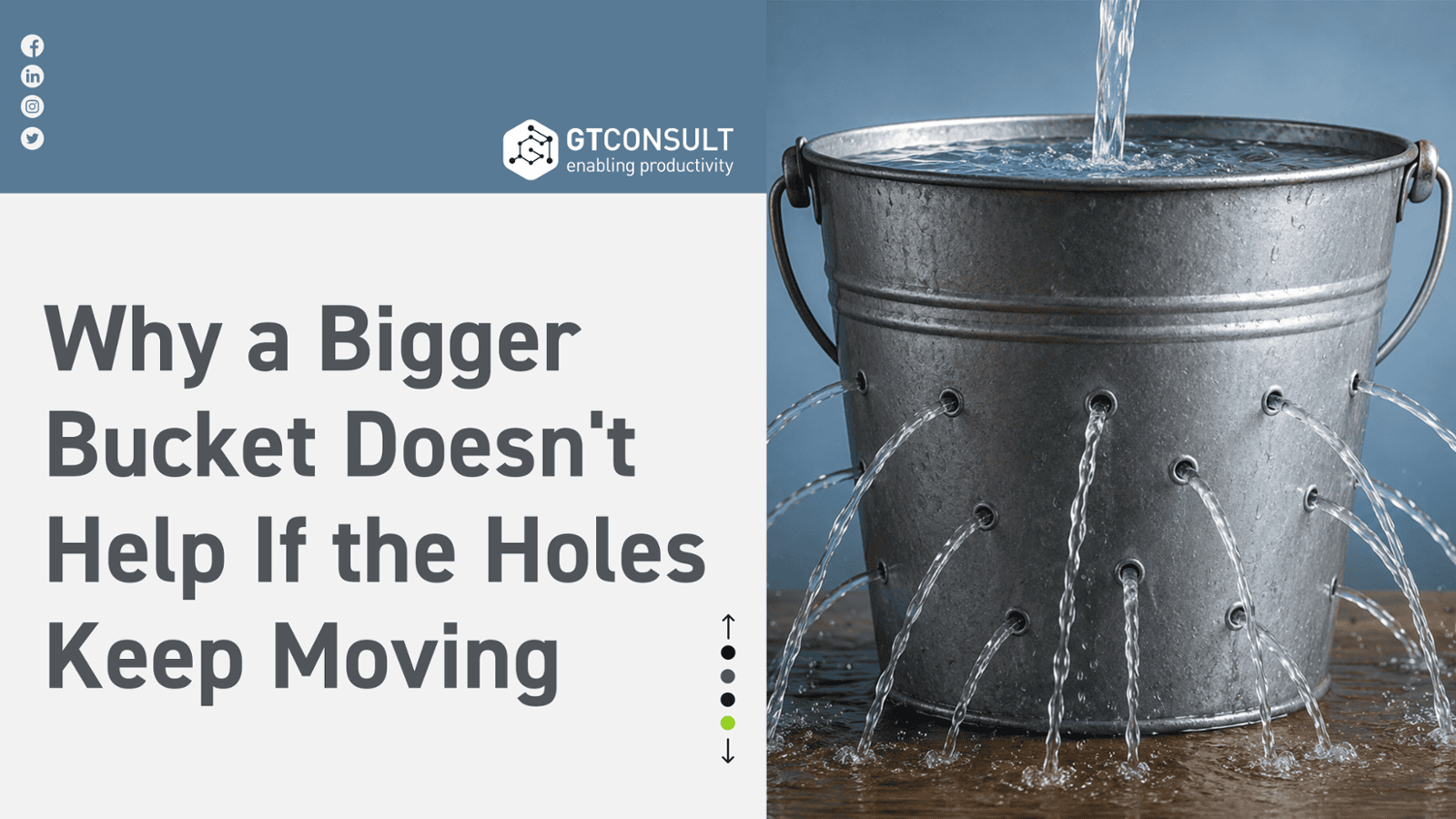
It delays go live for content that added no value in its old system either. Migrating a mess faithfully still leaves you with a mess, just in a new location.
A better approach

Decide version retention policy before migration starts, not during. Business critical libraries, contracts, financial records, board papers, may genuinely warrant full version history because of audit or legal requirements. General working folders, meeting notes, draft decks, day to day project files, usually don't need more than the last handful of versions to be useful.
This decision works best as a short policy statement agreed with stakeholders early, rather than a judgement call made library by library during the technical migration. It gives the migration team a clear rule to apply consistently, and it gives the business a chance to flag any library that genuinely needs an exception before it's too late to add one.
Questions you may have:
Does SharePoint migration keep all file versions?
Most tools can, but SharePoint Online's version limits and migration performance mean very long version histories are often trimmed or capped by design rather than by accident.
How many versions should I keep?
That depends on the content type. Regulated or contractual documents may need full history, while everyday working files usually don't need more than a handful of recent versions.
Can I recover an old version after migration if it wasn't moved?
Only if it still exists in the source system's backup. Once a migration is complete and the source is decommissioned, unmigrated versions are typically gone for good.
Before you decide what to carry over, run through GTconsult's SharePoint Migration Checklist. It covers content analysis up front and file integrity and version checks once the move is done.
Keep Reading
Check out our other blogs below: